
Want to take your Procreate lettering to the next level but not sure where to start?
Adding shadows is one of the quickest and most effective ways to make your letters really pop and today I'm going to walk you through three different ways to do it. They're all super easy, but each one gives your lettering that little bit of extra depth and dimension that makes all the difference.
I've kept the lettering itself really simple for this tutorial, just the word "hey" written in a standard monoline brush, so we can focus entirely on the shadow techniques. I've also created a free downloadable Procreate file so you can follow along with me as I walk you through each method.
Before we dive in, here's a quick note on how the file is set up. It's an A4 document with three groups - one for each shadow style and within each group there's a text layer (our word "hey") and a background colour layer. We'll be working within one folder at a time. And as always in Procreate, staying organised by renaming your layers as you go makes editing so much easier later on!
If you’d prefer to follow along visually, you can watch the full step-by-step tutorial here:
👉 Watch on YouTube: https://www.youtube.com/watch?v=G_jOK9mwtOg

Milly's Procreate canvas showing all three "hey" examples side by side
Shadow Style 1: Soft Drop Shadow
Let's start with the easiest one - a classic soft drop shadow that gives your lettering a beautiful, gentle lift off the page.
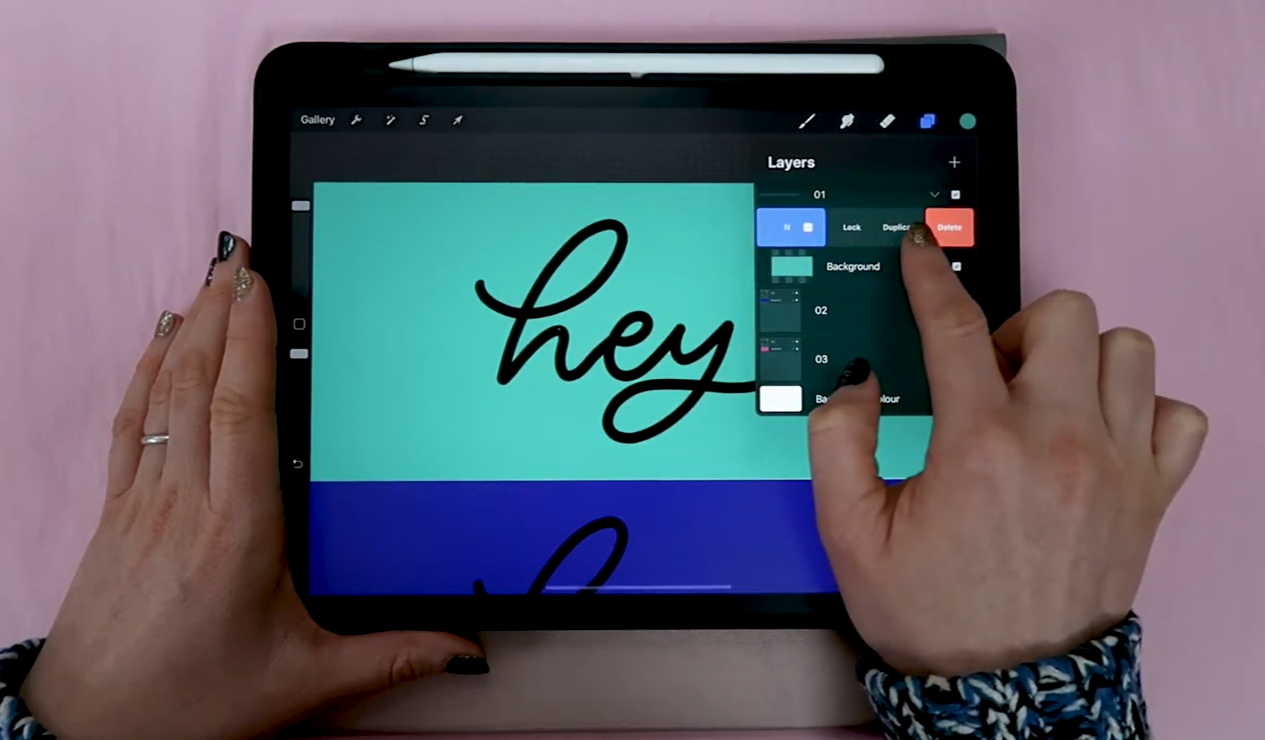
Procreate layer panel showing the organised folder and layer setup
Step 1: Duplicate your text layer.
Swipe your text layer to the left and you'll see a few options pop up. Tap Duplicate. You'll now have two text layers sitting one above the other. Select the lower one and rename it "Shadow". Staying organised is key!
Step 2: Blur the shadow layer.
With your shadow layer selected, head up to the magic wand tool and tap Gaussian Blur, then select Layer. You'll see a "slide to adjust" prompt at the top; drag your finger along to increase the blur. Go too far and it'll completely blur out, so pull it back until you're happy. I set mine to around 6% - you don't want it too heavy.

Soft blur shadow being applied and offset on the word "hey”
Step 3: Offset the shadow.
Now we want to move the shadow layer slightly so it's sitting just behind the text rather than directly underneath it. Here's a little tip I love: instead of dragging it around with your finger (which can be hard to control), try tapping the bottom corner of your screen to nudge it along pixel by pixel. Tap the bottom right to move it right, tap upwards to move it up - it gives you so much more control for subtle adjustments.
Step 4: Reduce the opacity.
Right now the shadow is very dark and merging into the text, so we need to soften it. Tap the N button in your layer panel to bring up the blending options and pull the opacity down to around 30%. And there you have it, a soft, dreamy drop shadow!
Have a little play with the position of the shadow to change where the light source feels like it's coming from, and experiment with the opacity too until you're happy with how it looks.

Finished soft drop shadow - word "hey" with subtle glowing shadow
Shadow Style 2: Solid Shadow with Detail
Shadow style two is a solid shadow similar in principle to the soft shadow but without any blur, which gives it a much crisper, bolder look. This one also involves adding a little hand-drawn detail to make the shadow feel really connected to the lettering.
Step 1: Change the text colour to white.
We're now working in folder two. First, let's make the word "hey" white so it really pops against the background. Select your text layer, turn on Alpha Lock (swipe two fingers to the right on the layer, or tap the layer and select Alpha Lock - you'll know it's on when you see a grid pattern behind your artwork), then fill the layer with white. Much better, it's already jumping off the page!
Step 2: Duplicate and colour the shadow.
Duplicate the text layer and fill the new lower copy with a darker version of your background colour (I've gone for a dark blue). Move this shadow layer slightly to offset it from the text using that same tap-the-corner trick from method one.
Step 3: Add shadow detail.
This is where it gets really satisfying. Create a new layer above the shadow layer and rename it "Shadow Detail". Keeping it separate means that if you don't like how it looks, you can simply delete that layer without losing anything. This is all about working in a non-destructive way in Procreate, which I can't recommend enough!

Solid shadow with detail lines being drawn in using monoline brush
Using a monoline brush at a very small size (I use around size 4), go in and connect the edges of the shadow to the lettering. Wherever there's an endpoint on your letters, draw a little line to join it to the shadow. On curves, soften out any sharp dips so the connection feels smooth and fluid. To get maximum control, zoom in close, rotate your artboard so it feels comfortable, and set your streamline all the way up in the brush settings (tap your brush, go to Stroke Path, and slide Streamline to maximum).
The difference this detail makes is super subtle but if you turn it on and off, you'll really see it, especially on larger lettering pieces. It just makes the shadow feel like it's truly coming from the edges of the letters rather than just sitting behind them.
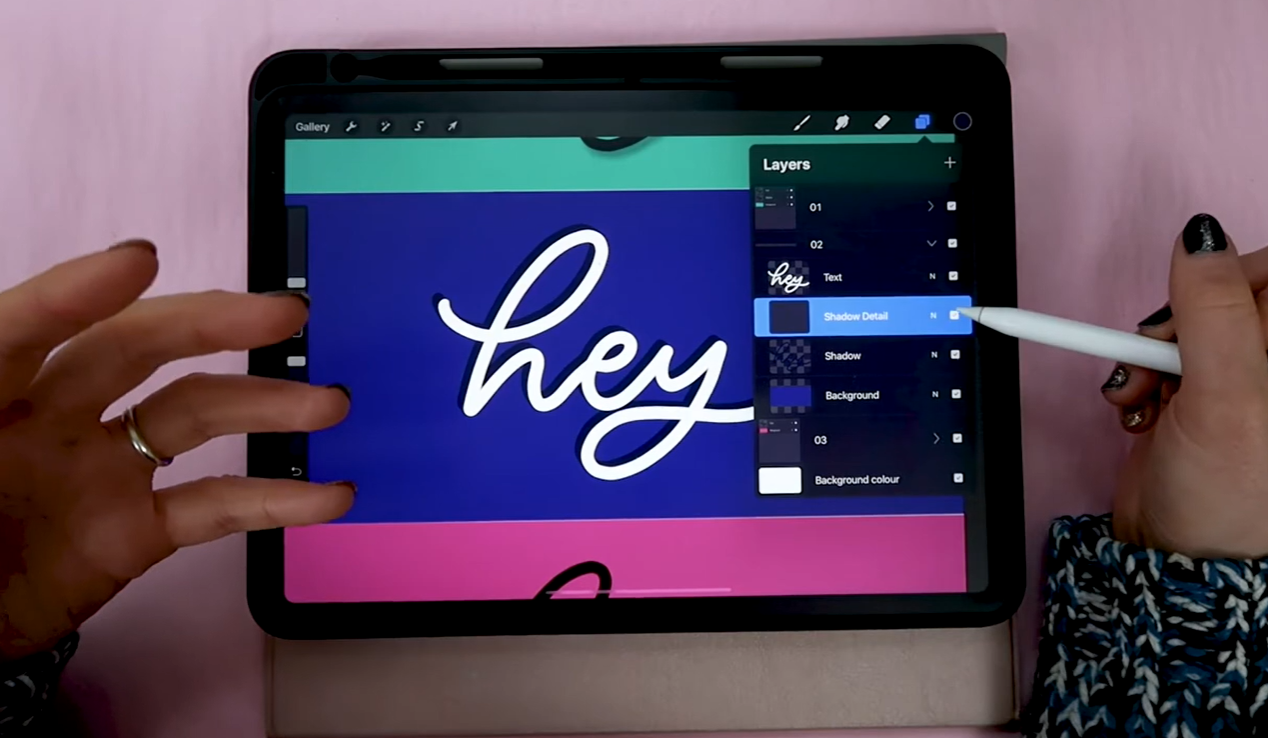
Before/after toggle of shadow detail layer on and off
Shadow Style 3: Floating Shadow
The third and final shadow style is my personal favourite - a floating shadow that makes your lettering look like it's hovering above the page. It's such a cool effect!
Step 1: Set up your layers.
In folder three, duplicate your text layer twice so you have three copies. Name them from bottom to top: Shadow, Gap, and keep the top one as your Text layer. Colour the text white, the gap layer in a contrasting colour (so you can see what you're doing, we'll change this later), and leave the shadow layer for now.
Step 2: Offset the layers.
This is where the floating effect is created. Select your shadow layer and tap the bottom right corner of your screen 20 times to move it 20 steps to the right. Then select your gap layer and do the same, but this time only 10 times, so it sits halfway between the text and the shadow. You'll now have three visible levels of your word, which already looks pretty cool as a layered 3D effect!
Step 3: Create the float.
Now for the magic bit. Take the gap layer and fill it with your background colour. I'm matching it to the pink background. Suddenly, it looks like the text is floating with a shadow behind it, with a gap of negative space in between. I absolutely love this!
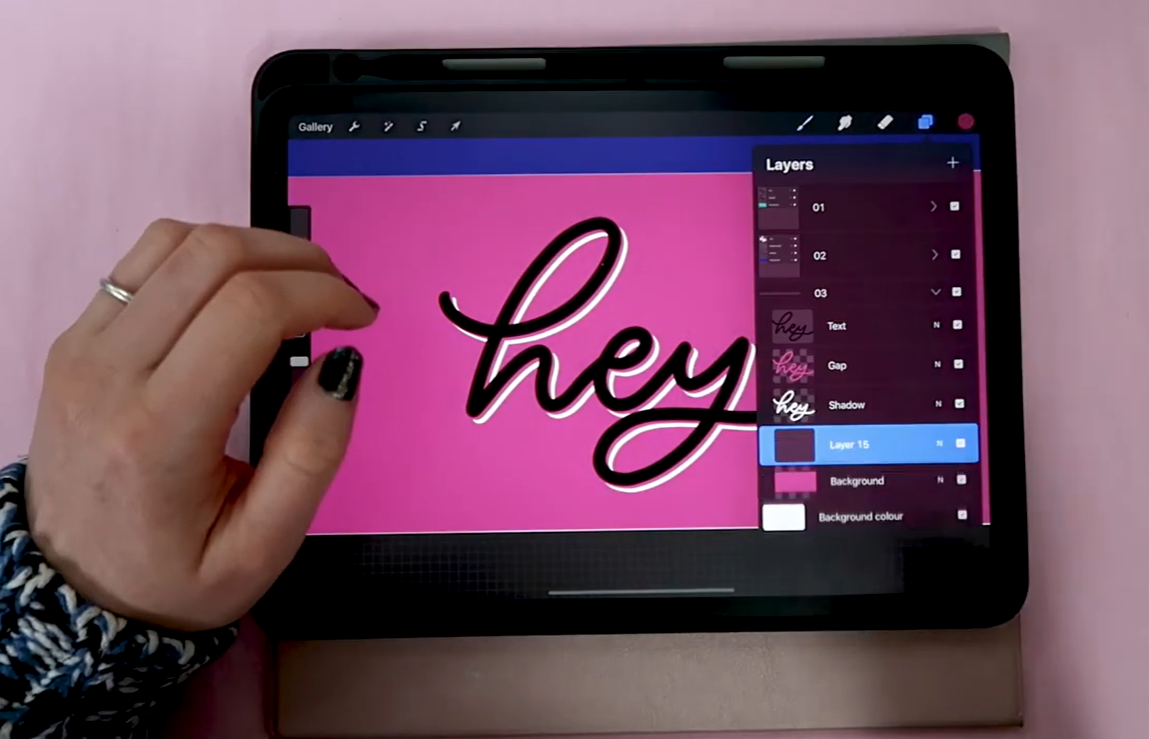
Three-layer floating effect visible - text, gap, and shadow all offset
One important note: If you're planning on using a textured or multi-coloured background, simply filling the gap layer with your background colour won't work - the gap will only blend in where the colour matches. To solve this in a truly non-destructive way, here's what to do instead:
Select the gap layer, tap it and choose Select. This will select the shape of that layer. Then go down to Invert so it's now selecting everything outside the gap word shape. Head to your shadow layer, tap it and choose Mask. This creates a layer mask that removes just the gap section from the shadow layer without actually deleting any of the shadow layer itself. You can turn the mask on and off at any time, so if you decide later that you want to move the shadow in a different direction, you're not starting from scratch.
Layer masks are such a brilliant way to stay organised and keep your Procreate files flexible. I really recommend getting comfortable with them!
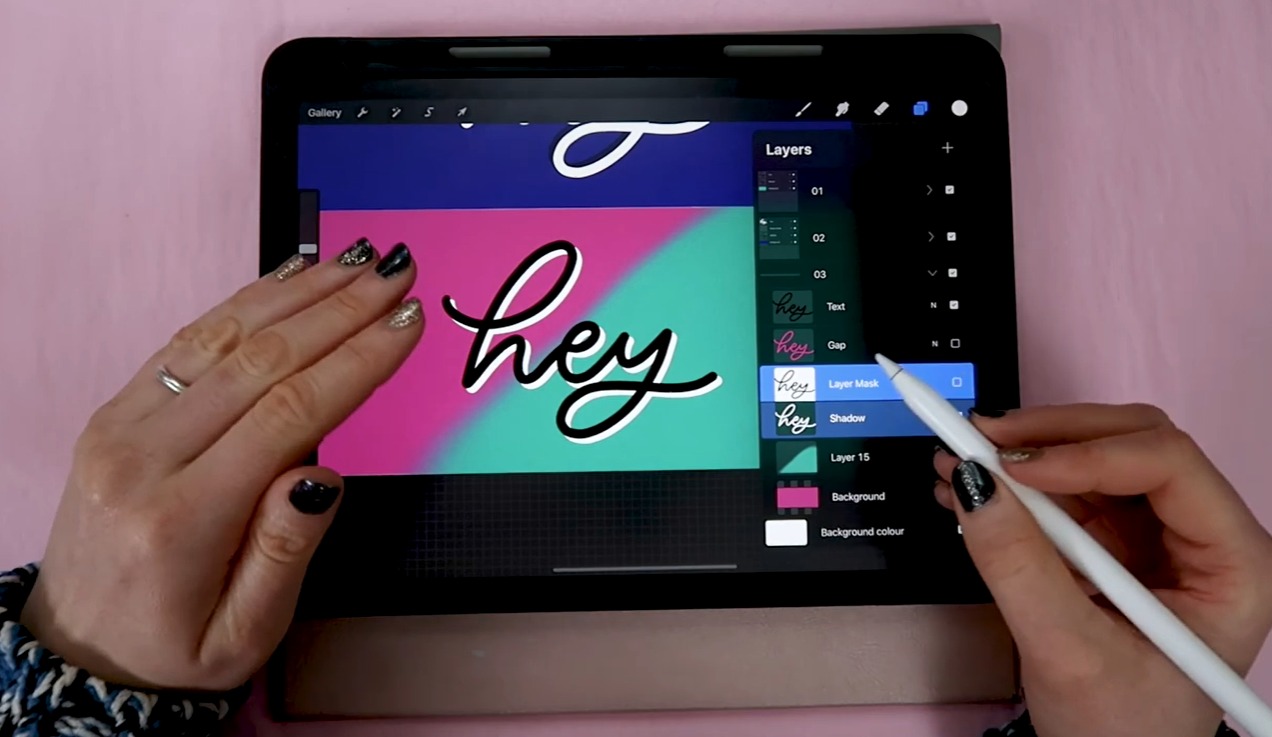
Finished floating shadow effect with layer mask applied
Go and Experiment!
So there you have it - three super simple ways to add shadow to your lettering and really make it pop in Procreate. Have fun experimenting with different depths of shadow, different blurs, and different opacity settings for each style. You can get so creative with all three of these and take your lettering to a whole new level!
Don't forget to download the free Procreate file so you can follow along.
Let’s Stay Connected
If you try this tutorial, I’d love to see what you create!
You can find me here:
Website: https://www.blinklettering.co.uk
Instagram: https://instagram.com/blinklettering
Favourite Supplies
Some links in this post may be affiliate links. This means I may earn a small commission if you choose to purchase, at no extra cost to you. This helps support Blink Lettering and the free tutorials I share.
Amazon Affiliate Shop: https://www.amazon.co.uk/shop/blinklettering